Rule-based routing: from match conditions to policies
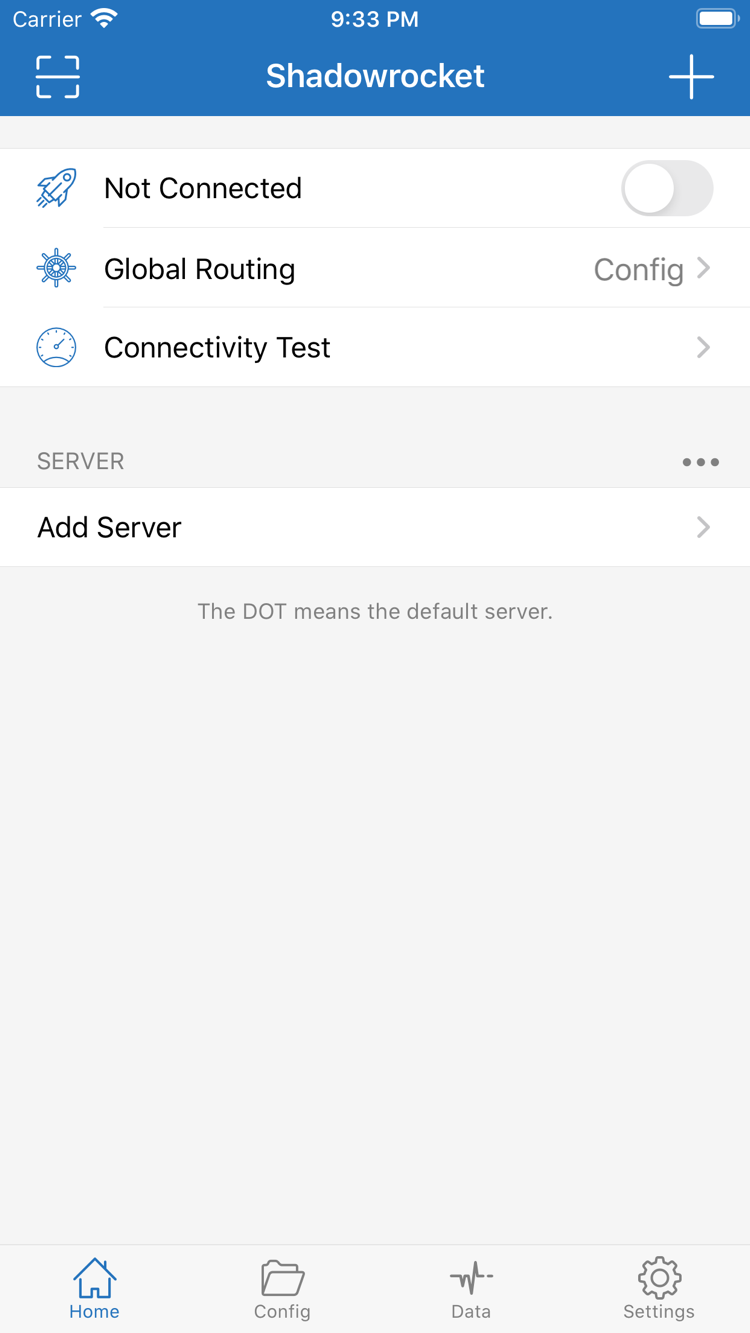
To choose how traffic is handled based on its destination, select Config under Global Routing and check which configuration is active. Rules are evaluated in order, and the policy for the first match is applied: PROXY sends traffic through the selected proxy, DIRECT connects directly, and REJECT blocks the request. Start with specific domain or address conditions, then add broader rules, and put FINAL last. Keep a working copy before making changes, adjust one item at a time, and verify the result with an actual request.
See the tutorial →
[Rule]
DOMAIN-SUFFIX,example.com,PROXY
DOMAIN,example.org,DIRECT
DOMAIN,blocked.example.com,REJECT
FINAL,DIRECT
On Demand: review automatic connection conditions
On Demand starts connections when specified conditions are met; review its options in Settings. Enable it only after manual connections are stable. First identify which network situations should trigger automatic connections and confirm that behavior after switching networks. On Demand is separate from the current connection status shown on Home, and it does not verify server availability. If the connection comes back on after you turn it off, check the On Demand conditions first. To investigate battery use, compare usage under similar conditions in the system battery settings.
See the tutorial →
[General]
bypass-system = true
This is a standalone General syntax example, not the On Demand setting. Configure on-demand connections in Settings.
Multiple protocols: choose Type based on your server details
When adding a server, choose the matching protocol under Type in Add Server, such as Shadowsocks, VMess, VLESS, Trojan, Hysteria2, or WireGuard. Each protocol uses different authentication and transport fields; changing only the protocol name while keeping all other parameters may not work. Check Host, Port, and the relevant authentication details. Keep TLS and any additional transport settings consistent as well. The protocol name alone says nothing about connection quality; test connectivity on your current network.
See the tutorial →
[Rule]
DOMAIN,example.com,PROXY
Rules specify how traffic is handled; configure the protocol and authentication parameters separately in the server settings.
Importing a subscription: identify the content type first
These steps assume you already have your own subscription or server details. First identify whether the content is a server subscription, a link for a single server, or a configuration file URL. Each import method accepts different content, so don't judge by how a link looks. Import it using the appropriate entry point, such as Subscribe, then check the list and any groups before selecting a server. After an update, verify your selection again if the entries have changed. Links may contain personal credentials, so don't share them in full when troubleshooting. Successful import does not confirm that the connection works.
See the tutorial →
[Rule]
DOMAIN-SUFFIX,example.com,PROXY
FINAL,DIRECT
This is a routing configuration snippet, not a subscription URL, and it contains no server details.
Configuration files: distinguish file contents from active status
Use Config to manage configuration files. Common sections include General, Rule, Host, and URL Rewrite. A file appearing in the list does not mean it is the active configuration; after editing and saving, check that it is selected and review the Global Routing mode. Save a copy of the existing contents before changing rules, and avoid making many changes at once. If you use iCloud sync, check that syncing has finished on each device. Syncing configurations and restoring an app purchase are separate processes; keep important configurations backed up separately.
See the tutorial →
[General]
bypass-system = true

[Rule]
DOMAIN-SUFFIX,example.com,PROXY
FINAL,DIRECT
Diagnostics: check connections and requests separately
For your first connection, use Connectivity Test on Home to check the selected server, then see whether actual access behaves as expected. Test results apply only to the test target and network conditions at that time; they do not verify access for every app. Data can help you observe traffic changes, but traffic counts alone do not prove connectivity. If the test succeeds but a particular request fails, check Global Routing, rule matches, and DNS. Before sharing information collected in Settings > Diagnostics, redact subscription URLs and credentials.
See the tutorial →
[Rule]
DOMAIN,example.com,DIRECT
FINAL,PROXY
Use specific match conditions to understand policy differences; don't overwrite a working configuration with an example.